1. Choose
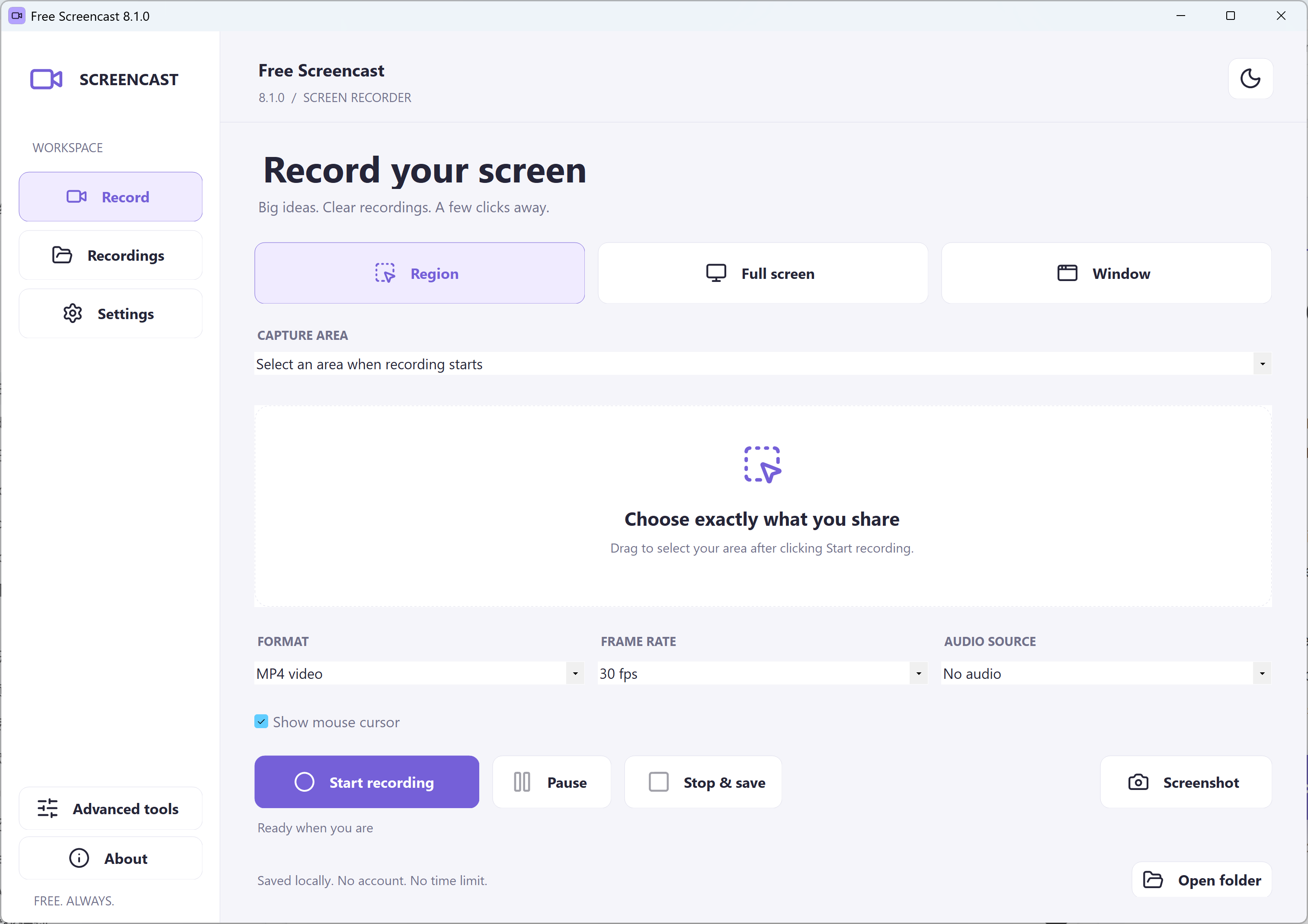
Pick a region, display or visible window area.
YOUR SCREEN. YOUR STORY.
Record a Windows screen in MP4 or GIF. Pause when you need to, then save it right on your PC.
Version 8.1.0 · Windows 11 22H2+ · 64-bit
See how it worksA little less setup. A lot more showing.
Pick a region, display or visible window area.
Press Start recording. Pause whenever you need.
Stop & save. Your file stays on your PC.
A simple recording window, with ShareX power underneath.
For the moments when showing is easier than typing.
Walk through a process at your own pace.
Learn MoreGive support a clearer view of the problem.
Learn MoreTurn a visible presentation into a local video.
Learn MoreChoose a source before you start talking.
Learn MoreExplain a short sequence without a video player.
Learn MoreFind your recordings and manage disk space.
Learn MoreYour next clear recording starts here.
Setup offers optional RelevantKnowledge research. You can decline and still install Free Screencast. Learn more.
What's new in 8.1.0 · Download information · Signing and checksums
Portable ZIP · Source code ZIP · License notices
Based on ShareX 21.0.0. This modified release is free software under the GNU GPL.
The things to know before you press record.
Yes. Screen recording, MP4 and GIF output, screenshots, pause and resume, both themes and the local library are free. You do not need a Free Screencast account or a subscription.
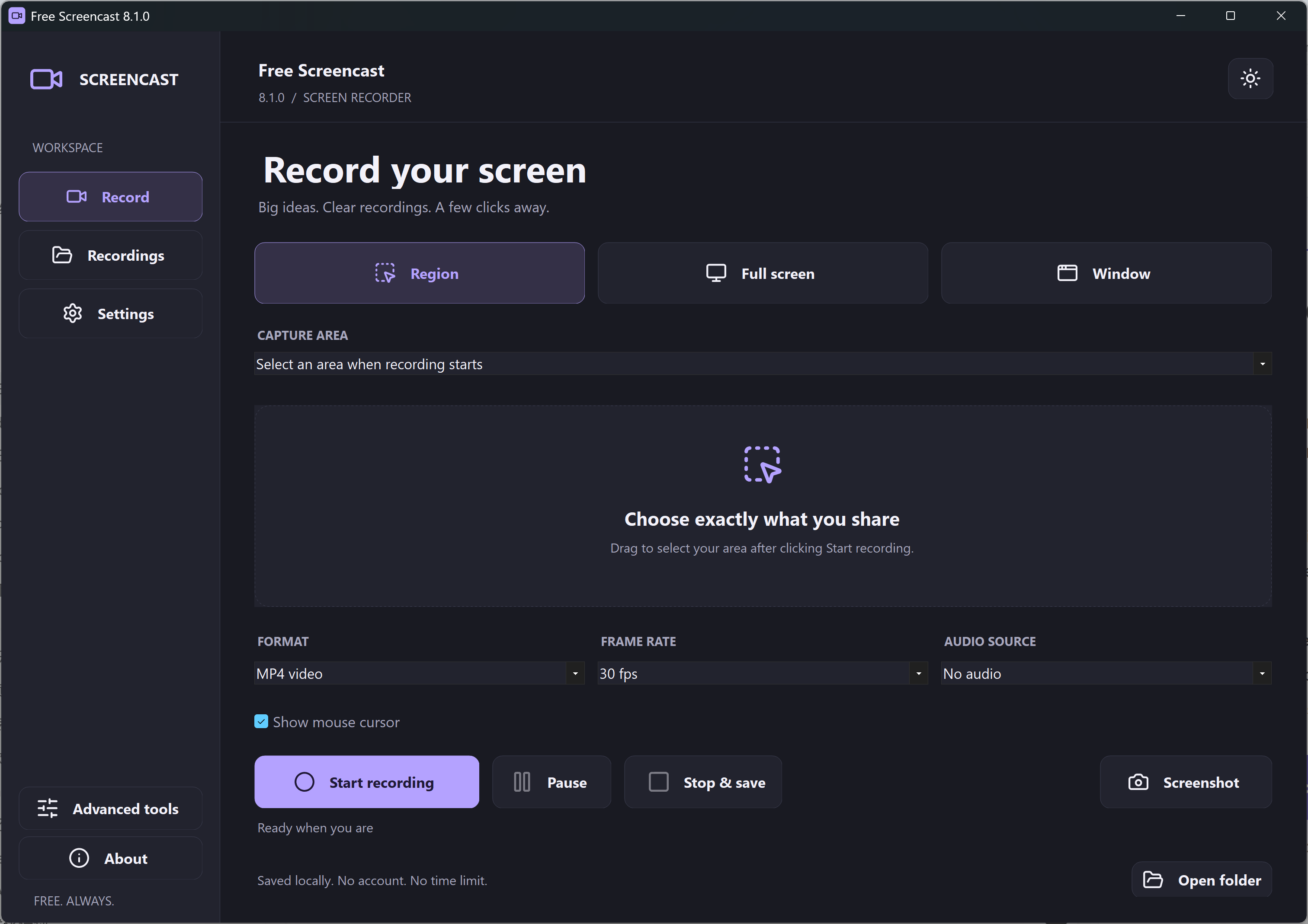
Choose Region, Full screen or Window. Select MP4 video or Animated GIF, check your audio source, then click Start recording. Region lets you drag an area. Stop & save finishes the file.
The app adds no watermark and has no fixed recording-time limit. Recording length still depends on available disk space, your PC and keeping the app running.
Choose one available DirectShow device under Audio source; the default is No audio. System sound needs a suitable Stereo Mix or loopback capture device already installed on your PC. The simple interface does not mix microphone and system sound at the same time. GIF has no sound.
Yes. Pause freezes capture and its elapsed time. Resume continues the same recording. Stop & save also works while paused and combines your recorded segments into one file.
Window mode records the selected window’s initial screen area. Keep that window visible, uncovered and in the same position. It does not follow a moving window or capture a minimized window in the background.
Files are saved locally. Open Recordings to see them or choose Open folder. Settings lets you choose a save folder. The simple recording workflow does not upload your recordings; advanced ShareX upload tools are separate, user-selected actions.
Version 8.1.0 requires Windows 11 22H2 or newer on x64 PCs. The required .NET runtime and recording encoder are included. This release is not offered for Windows 10, ARM64, macOS or Linux.
Setup offers optional RelevantKnowledge research from TMRG, a Comscore company. It can collect browsing and app activity in the background if you agree to join, and the publisher may be paid. You can decline and still install Free Screencast. It is not run during silent installation.
Yes. Free Screencast 8.1.0 is a separately branded, modified version of ShareX 21.0.0. It retains the upstream recording engine and advanced tools. Optional advanced encoders and network media inputs may need a compatible FFmpeg supplied by you. Modified source code, build information and license notices are available with the release.
A free screen recorder for your Windows PC.
Download Free ScreencastNo watermark. No account. All recording features free.