Home Record A Visible Video-Call Window
Record A Visible Video-Call Window
Capture a permitted, visible meeting area and check the available sound source before the call.
Download Free Screencast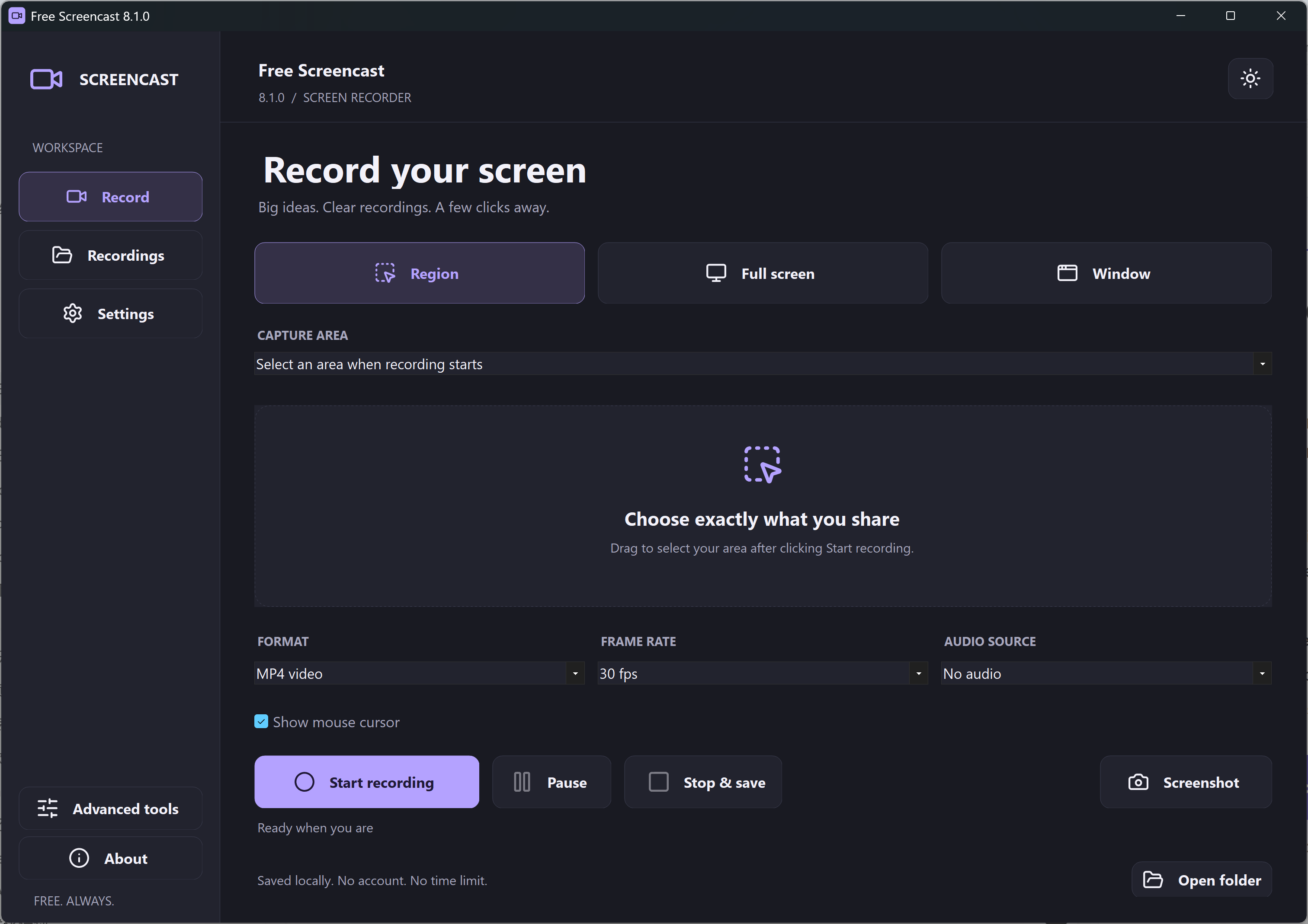
A Note About This Historical URL
This URL refers to an older Skype and webcam recording guide. The current Free Screencast 8.1.0 main recorder is a screen-area recorder; it does not supply a webcam overlay, meeting integration or simultaneous microphone/system mixing.
Prepare A Permitted Recording
- Check the meeting rules and obtain permission from participants where required. Use your current meeting application’s own recording workflow when that better fits your needs.
- If recording the screen, select only the visible meeting area and remove private messages or notifications.
- Choose one available DirectShow source and make a short audio test before the meeting.
- Keep the selected window visible and in place, then save and review the file.
A microphone captures sound reaching the microphone; it is not equivalent to direct system-audio capture. Do not rely on an untested setup for an important meeting. Share a saved recording only through an appropriate, authorized channel.