Home Make A Clear Screen Recording
Make A Clear Screen Recording
Readable text, a focused area and a well-prepared example make an explanation easier to follow.
Download Free Screencast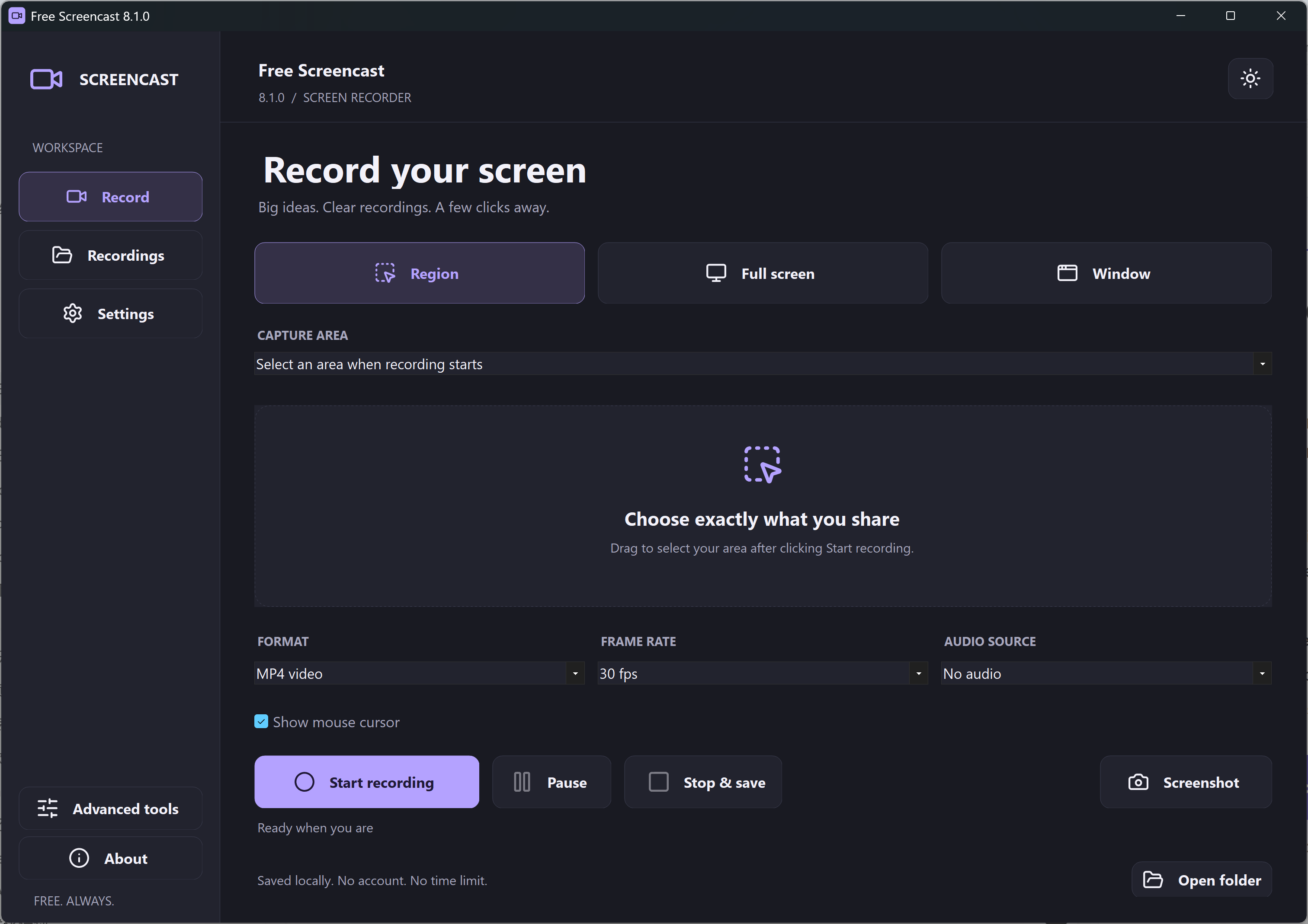
Clarity Before Effects
- Prepare a short sequence that demonstrates one task. Use non-sensitive sample data.
- Capture only the useful area and increase the source application’s text size when necessary.
- Turn on Show mouse cursor if the viewer needs to follow your clicks. Do not assume that this adds special click animations.
- Pause between steps while you prepare, then resume and save a short MP4.
Current Feature Scope
The 8.1.0 main recorder does not add the old application’s drawing layer, text/image overlays or camera bubble to a video. It captures the selected visible screen area, with MP4/GIF output and pause/resume. Retained advanced tools have their own workflows and should not be confused with effects on the main recording screen.
Keep an original copy before editing externally. See text clarity advice and ways to prepare on-screen context.